Installation of Exton-Slack 14.0 64 bit to a USB stick of at least 1 GB
METHOD 1
Exton-Slack 14.0 can be installed/transferred to a USB stick directly from the ISO file with the dd command. It might be good to use this method if your computer lacks a CD/DVD drive, or if you just prefer to run Linux systems from a USB stick. Note, however, that the system on the USB stick behaves exactly as if you were running it from a dvd. Ie after restarting the computer, none of your made system changes remain. This is the way to perform the installation:
1. Boot up a Linux system (Ubuntu or...) and download the ISO file exton-slack-14.0-64bit-990mb-130619.iso
2. Open up a terminal and cd to the folder where the ISO file is
3. Insert a USB stick and make sure the name of the given (/dev/sdb1 or /dev/sdc1 or ...)
4. Run the command isohybrid --partok exton-slack-14.0-64bit-990mb-130619.iso
5. Then run the installation command dd if=exton-slack-14.0-64bit-990mb-130619.iso of=/dev/sdb
NOTE: Do not use /dev/sda. (You will then delete the partition on which you probably have a Windows system). ALSO NOTE: You shall not write /dev/sdb1 (which is easy to believe)
6. Restart your computer with the USB stick in place and change the BIOS so that the computer in the first place is booting from the USB stick
7. Enjoy!
NOTE: This way to transfer/install Exton-Slack 14.0 to a USB stick works perfectly. Nothing can be saved on the stick though.
METHOD 2 (the best one)
Installation of Exton-Slack 14.0 on a USB stick of at least 2 GB
This installation is easiest to do in Windows XP/Vista/7/8. Follow these steps:
1. Format the USB stick with the file system FAT/FAT32. (Right click and select Format)
2. Open the downloaded file exton-slack-14.0-64bit-990mb-130619.iso (with MagicISO or...). You will see that there is one folder called slack.
3. Copy the aforementioned folder slack to the root of the USB stick.
4. Open up a command prompt as administrator (very important!) and make sure you are in G: (or the name your USB stick got on your computer).
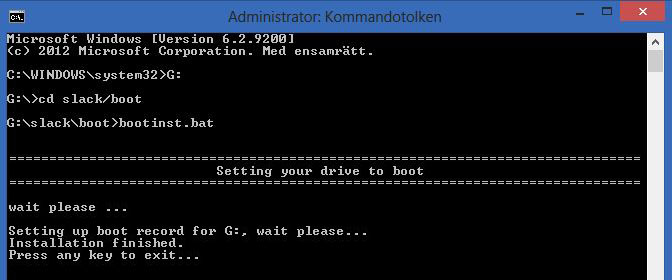
5. Run the command cd slack/boot followed by bootinst.bat. This is because the USB stick must be made bootable. Important: Do not run the command when you are in the C:. (If you do then, Windows 8 - or whatever you have in your C drive - cannot be started). If you get error messages when running the command bootinst.bat, you should not worry about them. Just click a few times on "Retry". If you still get an error message saying that the operation has failed, do not worry about that either. The USB stick is bootable if you followed the steps in paragraph 1-5 above.
6. Set the BIOS so your computer primarily will boot from USB HDD (or similar).
7. Restart the computer with the USB stick in place. (See also additional info on this page below).
This is how it looks when I run the
aforementioned commands.
NOTE: It appears that not all USB sticks are suitable for topical purposes. I. e. they can not be made bootable. I myself have experience of brands Kingston DataTraveler, SanDisk Cruzer Micro, SanDisk Extreme USB 3.0 and Sony Micro Vault. The first three works (for me). You may not use USB sticks of older model. They may work, but mostly bad. If you - after the installation of Exton.Slack to the USB stick - get different error messages when you try to run the system from the stick it is because the stick is not "good" enough.
NOTE: All system changes are PERSISTENT. (When using method 2).
exton /130619